Create a workspace main
1) Start by clicking the Workspaces 
 button in the activity bar, on the left side of the screen. This will open the Workspace Explorer page.
2) Now that the Workspace Explorer page is open, select the workspace image you'd like to work with. If you don't see this click the Explore tab at the top of the screen.
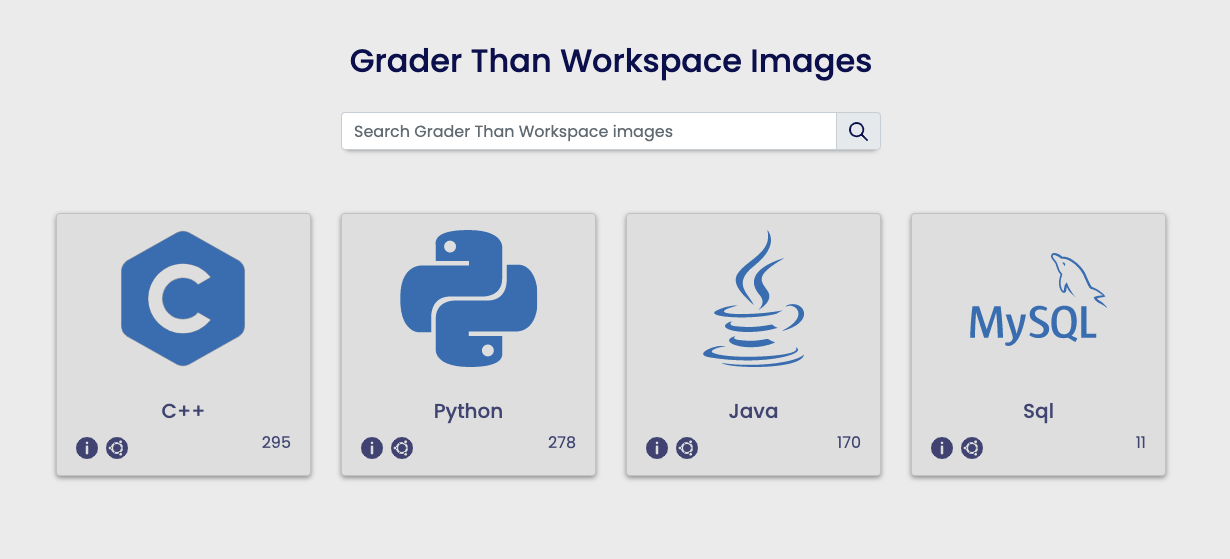
If you don't see a page similar to the image depicted above, click the tab Explore at the top of the screen
3) Click the icon of the workspace you'd like to create. This will open the Workspace creation modal.
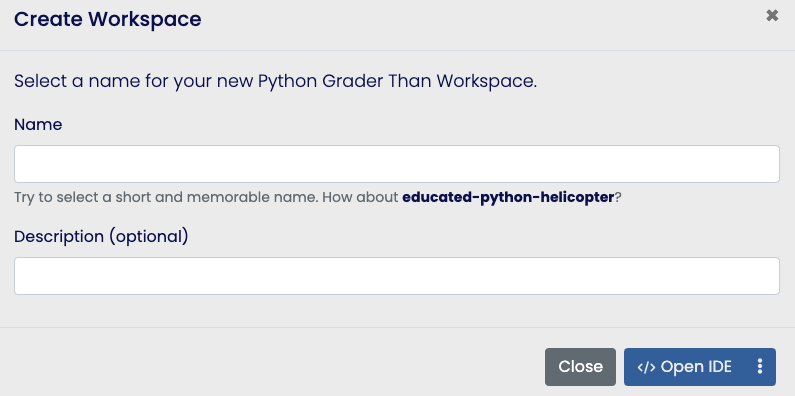
4) Type in a unique name for your workspace in the Name field and then click the blue 
 Open IDE
button in the bottom right corner.
Open IDE
button in the bottom right corner.
 You've created a new workspace! A new tab will automatically appear in your browser which will take you to your
workspace.
You've created a new workspace! A new tab will automatically appear in your browser which will take you to your
workspace.
To open the desktop
Select the More Options 
 button on the right side of the blue button in the bottom right corner of the Workspace creation modal and then
select the
button on the right side of the blue button in the bottom right corner of the Workspace creation modal and then
select the 
 Open
Desktop option in the menu that appears.
Open
Desktop option in the menu that appears.
Disable your pop-up blockers or else you may not see the new workspace tab in your browser.